Speed Up Your Computer: 12 Proven Fixes for Slow Windows & Mac Devices
Simeon Olaomo
2 min read
At TechUpscale, we believe in making tech work for you—not the other way around. Here’s your go-to guide to speeding up your computer, whether you’re on Windows or Mac.
Why Is My Computer So Slow?
First, let’s quickly understand why computers slow down:
Too many background programs
Full storage or a cluttered hard drive
Outdated software
Malware or bloatware
Low RAM or aging hardware
Startup overload
Now, let’s fix it.
Speed up For Windows Users
Disable Unnecessary Startup Programs
Many apps sneak into startup and slow down boot time.
Steps:
Press Ctrl + Shift + Esc → Go to Startup tab → Right-click & disable apps you don’t need at startup.
Uninstall Bloatware & Junk Software
Some programs run silently in the background.
Steps:
Settings → Apps → Apps & Features or installed Apps → Uninstall apps you don’t use or recognize.
Clean Up Your Disk
Free up space using Disk Cleanup:
Steps:
Start Menu → Search Disk Cleanup → Select Drive → Check unnecessary files (temp files, recycle bin, etc.) → Click Clean up system files.
Update Windows & Drivers
Outdated OS or drivers can cause lag.
Steps:
Settings → Windows Update → Check for updates
Use Device Manager for driver updates.
Run a Virus/Malware Scan
Use Windows Defender or a trusted antivirus to remove hidden threats.
Upgrade RAM or Switch to SSD
If your PC is still slow after all this, consider:
Upgrading from HDD to SSD
Increasing your RAM to 8GB or more
Speed up For Mac Users Check & Stop Resource-Hungry Apps
Use Activity Monitor to find what’s eating your CPU/RAM.
Steps:
Applications → Utilities → Activity Monitor → Sort by CPU or Memory → Quit the high-usage apps.
Clean Up Your Storage
Steps:
Apple Menu → About This Mac → Storage → Manage
Use “Optimize Storage” and remove large unused files.
Reduce Startup Items
Steps:
System Settings → General → Login Items → Disable unneeded apps from launching at startup.
Clear Cache Files
Steps:
In Finder, hold Shift + Command + G → Type ~/Library/Caches
Manually delete old or large cache folders. (Be careful not to delete system-critical files.)
Update macOS
Steps:
Apple Menu → System Settings → General → Software Update
Consider a Fresh macOS Reinstall
If your Mac is still sluggish after all this, backing up your data and reinstalling macOS can give you a fresh start.
Bonus: General Speed Up Tips for Both Windows & Mac
Close browser tabs & background apps when not in use
Use lightweight apps instead of heavy alternatives
Keep your desktop clean – too many icons slow things down
Restart your computer regularly (yes, really!)
Use trusted tools like CCleaner (Windows) or CleanMyMac X (Mac)
Want to Stay Fast in a World That’s Getting Smarter?
Tech is evolving, and your computer should keep up. At TechUpscale, we help you navigate the digital world smarter, safer, and faster. From how-tos to deep dives, we’ve got your back.
Final Thoughts
A slow computer doesn’t always mean it’s time to replace it. With the right maintenance and smart tweaks, you can bring your computer back to life.
Got a question or tip that helped speed up your computer? Share it in the comments below.
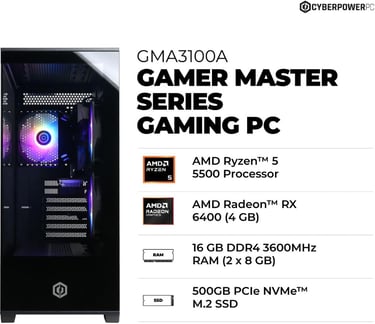
CyberPowerPC Gamer Master Gaming PC, AMD Ryzen 5 5500 3.6GHz, Radeon RX 6400 4GB, 16GB DDR4, 500GB PCIe Gen4 SSD, WiFi Ready & Windows 11 Home (GMA3100A)